Adding live chat to a WordPress website gives visitors a convenient way to ask questions, request assistance, and contact your team without leaving the page. For service businesses, agencies, online stores, and website owners, this can make communication easier and help potential customers get the information they need.
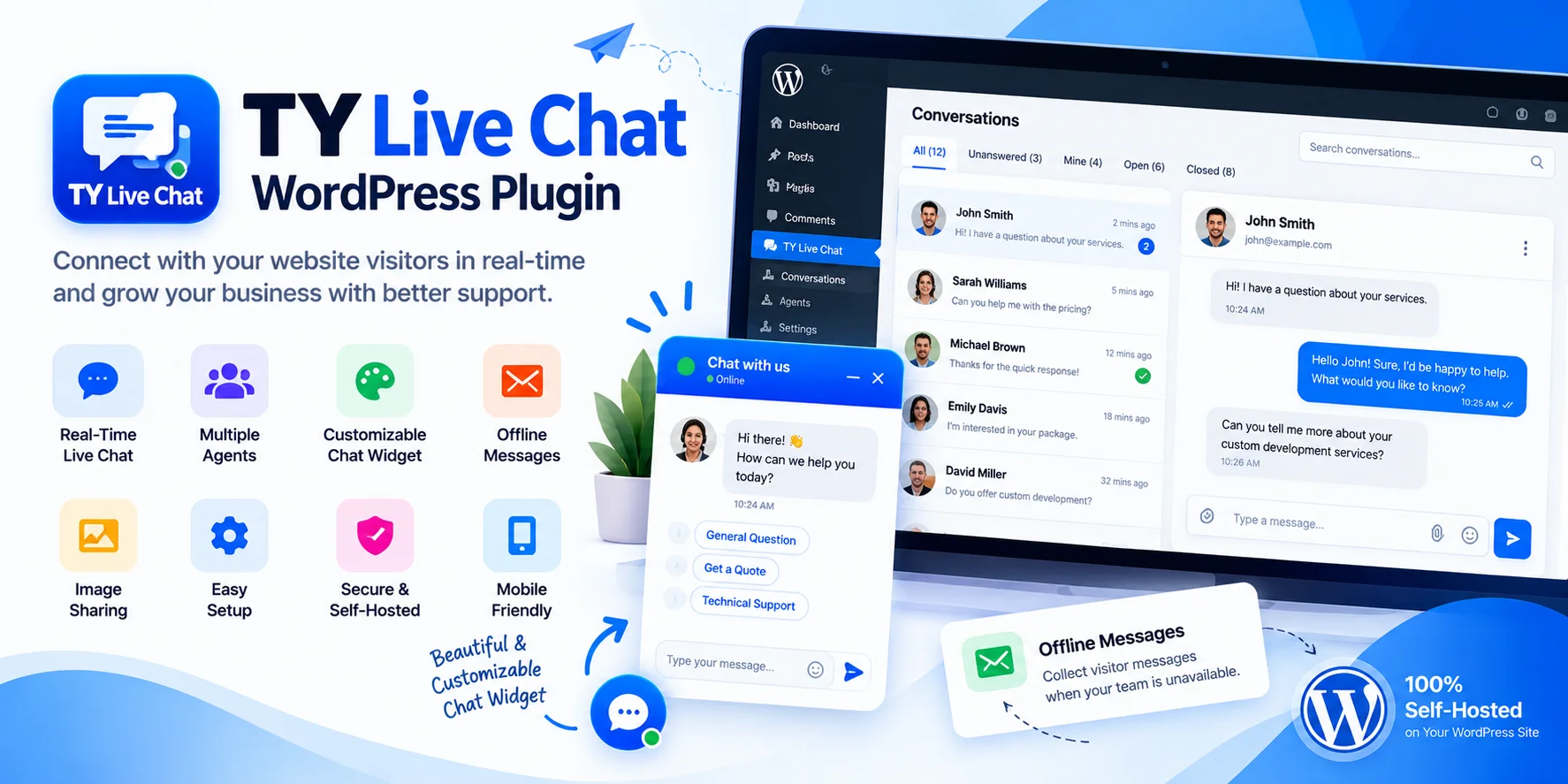
The TY Live Chat WordPress Plugin provides a self-hosted live chat system that lets website visitors communicate with your team through a customizable chat widget. Instead of relying on an external chat platform, the plugin stores its chat data in your WordPress database and provides a separate portal where agents can answer conversations.
In this guide, you will learn how TY Live Chat works, how to install and configure it, how to manage agents and conversations, and how to customize the chat experience for your website.
What Is TY Live Chat?
TY Live Chat is a WordPress plugin that adds a live chat widget to your website. Visitors can open the widget, provide their details if required, and start a conversation with your team.
Your team can respond through a dedicated chat portal rather than working inside the regular WordPress dashboard. This separation is particularly useful when customer support staff need access to conversations but should not have access to website settings, plugins, or other administrative features.
The plugin is designed for businesses that want to manage conversations on their own WordPress installation. According to its official listing, it does not require an external chat service account, subscription fee, or per-agent payment.
You can find the plugin on the official WordPress directory:
Key Features of TY Live Chat
1. Customizable Chat Widget
TY Live Chat includes five widget styles: Classic, Compact, Premium, Minimal, and Expanded. You can choose a style that suits your website design and customize its appearance.
Available customization options include:
- Widget colors and launcher shape
- Chat icon, position, size, and corner radius
- Widget text and branding
- Your business logo and team picture
- A live preview of the widget before saving changes
The widget is added to your website automatically, so you do not need to paste a separate code snippet into your theme.
2. Visitor Form Builder
Before starting a conversation, visitors can be asked to provide information such as their name, email address, or phone number. Alternatively, you can allow visitors to start chatting immediately.
The built-in form builder supports multiple field types, including:
- Short text and long text
- Email and phone
- Dropdown menus and radio buttons
- Checkboxes
- Hidden page information
This helps businesses collect useful details without making the contact process unnecessarily complicated.
3. A Separate Chat Portal for Your Team
One of the main features of TY Live Chat is its dedicated chat portal. Rather than giving every support representative access to WordPress administration, you can create separate agent accounts.
The portal provides a workspace for viewing incoming conversations, replying to visitors, and organizing support requests.
Administrators can open the portal using their WordPress account, while agents sign in using the email address and password created for them.
This arrangement can be useful for agencies, customer support teams, and businesses where several employees need to handle website inquiries.
4. Real-Time Conversations and Notifications
The plugin automatically updates conversations as new messages arrive. Its chat interface supports typing indicators, unread message counters, sound alerts, and optional desktop notifications.
The portal also includes an overview of live activity, an inbox, and a visitor list.
These features help agents notice new messages and respond without constantly refreshing the page. Actual responsiveness will depend on factors such as hosting resources, browser activity, and network conditions.
5. Conversation Assignment and Status Management
When several agents are working together, it is important to keep conversations organized.
TY Live Chat lets your team filter conversations by categories such as All, Unanswered, Unassigned, Mine, Open, Pending, and Closed. You can also search conversations by visitor name, email address, or message.
Agents can assign conversations, mark them as pending, close them, and reopen them when follow-up is needed.
These tools help teams distinguish between new inquiries, active discussions, and conversations that have already been handled.
6. Image Sharing
Visitors and agents can exchange supported image files within a conversation. The plugin listing specifies JPG, PNG, GIF, and WebP images, with a maximum size of 5 MB per image.
Images appear as previews and can be opened at full size or downloaded. Visitor image uploads can also be disabled.
This feature may be useful when customers need to show a screenshot, product issue, website error, or other visual detail. Avoid asking visitors to share passwords, payment details, or other highly sensitive information through chat.
7. Agent Accounts and Availability Settings
You can create, edit, disable, or delete agents under Live Chat > Agents. Each agent can have a display name and picture that visitors see during conversations.
Agent passwords are stored as secure hashes, and the plugin limits failed sign-in attempts. Changing an agent's password or disabling the account signs that agent out across devices.
The availability settings offer four modes:
- Automatic: An agent is considered online while someone has the chat portal open.
- Business hours: Set availability around your working schedule.
- Always online: Keep the widget in an online state.
- Always offline: Collect messages instead of offering an active conversation.
8. Privacy and Data Management
TY Live Chat stores conversation data in your WordPress database rather than sending it to an external chat service, according to its official listing.
The plugin also provides privacy-related controls, including an optional consent checkbox, configurable automatic deletion of inactive conversations, and compatibility with WordPress personal data export and erase tools.
A suggested privacy-policy text is available to help explain how chat data is handled.
Note that deactivating the plugin does not automatically delete its stored chat data. Data is removed during uninstall only if the relevant deletion option has been enabled. Review these settings before uninstalling the plugin.
Your website still needs its own appropriate privacy practices. Using a plugin with privacy tools does not automatically guarantee compliance with GDPR or other privacy laws.
How to Install TY Live Chat on WordPress
Follow these steps to install the plugin.
Step 1: Open the WordPress Plugin Directory
Log in to your WordPress dashboard and navigate to Plugins > Add New Plugin.
Search for TY Live Chat. Check that the plugin author and listing match the official plugin before installing it.
Step 2: Install and Activate the Plugin
Click Install Now, then select Activate once installation finishes.
You can also download the plugin from its official WordPress.org page and upload it through the plugin upload screen if you prefer manual installation.
Step 3: Complete the Setup Wizard
Open Live Chat from the WordPress admin menu. The setup process guides you through the initial configuration.
Set your preferred widget colors, chat style, visitor form, availability mode, and chat portal address.
Review the settings carefully and select Finish setup when you are ready. The chat widget should then be available on your website.
Step 4: Check the Front End
Open your website in a new browser tab and look for the chat button.
Click it to check that the widget opens correctly and that the visitor form and chat interface behave as expected. Test the experience on both desktop and mobile.
How to Add and Manage Chat Agents
After installing the plugin, you can give your team access to the chat portal.
- Open Live Chat > Agents in WordPress.
- Create an agent account with the required name, email address, and password.
- Add a profile picture if you want visitors to see the agent's image.
- Save the account and share the portal address and login details securely with the agent.
- Ask the agent to sign in and test a conversation.
If an agent forgets their password, an administrator can edit the agent and set a new one. The agent will be signed out of other devices and can then log in with the updated password.
How to Manage Incoming Conversations
Once your widget is active, visitors can begin sending messages.
Open the chat portal and review the inbox for incoming conversations. Select a conversation to read the visitor's messages and reply.
Use the available filters to identify unanswered or unassigned chats. Assign conversations when responsibility needs to be clear, mark discussions as pending when they require follow-up, and close completed conversations. You can reopen a conversation if the visitor returns and further assistance is required.
For a small business, a simple routine can work well: check unanswered conversations regularly, assign each inquiry to an appropriate team member, and follow up on pending requests before closing them.
How to Customize the Widget for Your Brand
A consistent chat design helps the widget feel like a natural part of your website.
Go to the plugin's setup or settings area and choose one of the available widget templates. Adjust the colors to match your brand, select a suitable launcher icon and position, and update the displayed text.
Add your business logo or team picture if appropriate. Use the live preview to review the design before saving.
Keep the widget easy to notice without covering important navigation, buttons, or content. On mobile devices, test the full-screen chat carefully to make sure visitors can enter and send messages comfortably.
What Happens When Your Team Is Offline?
Visitors may want to contact your business outside normal working hours. TY Live Chat supports an offline message form so they can leave their details and questions when an agent is unavailable.
Configure the availability mode to match your team's actual schedule. If you enable email alerts for new conversations, test whether notifications reach the intended inbox.
The plugin uses WordPress's standard mail function for email notifications. If your website has email-delivery problems, configuring a reliable SMTP plugin may help.
Remember that an offline message form is not the same as an automated chatbot. TY Live Chat is designed for conversations answered by real people; it does not include an AI chatbot.
Performance, Hosting, and Compatibility
TY Live Chat uses the WordPress REST API with adaptive polling to check for new messages. According to the plugin documentation, it does not require WebSockets or an external messaging service and is designed to work on standard shared hosting.
The plugin also describes several performance measures: its front-end script is loaded in the footer with deferred execution, it does not require jQuery, and its widget styles are isolated from the theme using a Shadow DOM.
Chat capacity still depends on your hosting resources. Sites expecting many simultaneous conversations should test performance and consider whether their PHP workers, database, and caching setup can support the expected activity.
The listing specifies WordPress 6.2 or higher and PHP 7.4 or higher. Check the current compatibility information on the official plugin page before installation or a major website update.
Common Questions About TY Live Chat
Is TY Live Chat free?
The official listing states that the plugin's described features are included without a paid version, per-agent fees, or per-chat fees. Hosting and any other services you use for your website may still have their own costs.
Do I need an external account?
No external chat-service account is required according to the plugin documentation. Chat data and settings are managed within your WordPress installation.
Can agents access my WordPress dashboard?
Agents use their own credentials to access the separate chat portal. They do not need a WordPress account for that purpose. WordPress administrators can also access the portal using their existing account.
Can visitors continue a conversation after changing pages?
The plugin uses a random identifier stored in the visitor's browser to help continue the conversation. A hashed version is stored on the server, and the system is designed to restrict visitors to their own conversations.
Does TY Live Chat support AI replies?
No. The plugin is designed for human agents to answer visitors. It does not provide an AI chatbot.
What should I do if the chat widget does not appear?
Confirm that the plugin is active and the setup process is complete. Clear relevant website or browser caches, check for JavaScript errors or plugin conflicts, and test the site in another browser. If the problem continues, consult the plugin's support page.
Final Thoughts
TY Live Chat provides WordPress website owners with a way to add live messaging, manage agents, organize conversations, and collect offline inquiries without depending on an external chat platform.
Its customizable widget, separate agent portal, conversation filters, image sharing, availability controls, and privacy features make it worth considering for businesses that want to manage customer conversations within WordPress.
Before deploying it on a live website, test the visitor experience, agent access, email notifications, mobile layout, and privacy settings. Configure the availability mode to reflect when your team can actually respond.
Get TY Live Chat: Here
For the complete feature list, installation details, and latest compatibility information, refer to the official WordPress plugin directory page.